Official guide: https://documentation.wazuh.com/current/user-manual/user-administration/ldap.html
As I was using LDAPS, first step was to copy the Domain Controller SSL Certs or your Local CA cert to the following. As I have two domain controllers with self-signed certs, so I copied them both to single file: /etc/wazuh-indexer/opensearch-security/ldapcacert.pem
chown wazuh-indexer:wazuh-indexer /etc/wazuh-indexer/opensearch-security/ldapcacert.pemvi /etc/wazuh-indexer/opensearch-security/config.yml
      ldap:
        description: "Authenticate via LDAP or Active Directory"
        http_enabled: true
        transport_enabled: false
        order: 5
        http_authenticator:
          type: basic
          challenge: false
        authentication_backend
# LDAP authentication backend (authenticate users against a LDAP or Active Directory)
          type: ldap
          config:
            # enable ldaps
            enable_ssl: true #Set to true if LDAPS is enabled, otherwise set to false.
            pemtrustedcas_filepath: /etc/wazuh-indexer/opensearch-security/ldapcacert.pem
            # enable start tls, enable_ssl should be false
            enable_start_tls: false
            # send client certificate
            enable_ssl_client_auth: false
            # verify ldap hostname
            verify_hostnames: true
            hosts:
            - adc-01.homestudio.com:636
            - adc-02.homestudio.com:636
            bind_dn: 'cn=ldapuser,ou=Service Users,ou=LDN,dc=homestudio,dc=com'
            password: My-LDAP-Pass-01
            userbase: 'ou=LDN,dc=homestudio,dc=com'
            # Filter to search for users (currently in the whole subtree beneath userbase)
            # {0} is substituted with the username
            usersearch: '(sAMAccountName={0})'
            # Use this attribute from the user as username (if not set then DN is used)
            username_attribute: cn   #sAMAccountName   #null
The second section to change is for authorization. Official guide is missing ldapscert file path for ldaps.
    authz:
      roles_from_myldap:
        description: "Authorize via LDAP or Active Directory"
        http_enabled: true  #false
        transport_enabled: true  #false
        authorization_backend:
          # LDAP authorization backend (gather roles from a LDAP or Active Directory, you have to configure the above LDAP authentication backend settings
 too)
          type: ldap
          config:
            # enable ldaps
            enable_ssl: true   #false
            pemtrustedcas_filepath: /etc/wazuh-indexer/opensearch-security/ldapcacert.pem
            # enable start tls, enable_ssl should be false
            enable_start_tls: false
            # send client certificate
            enable_ssl_client_auth: false
            # verify ldap hostname
            verify_hostnames: true
            hosts:
            - adc-01.homestudio.com:636
            - adc-02.homestudio.com:636
            bind_dn: 'cn=teraldaps,ou=Service Users,ou=LDN,dc=homestudio,dc=com'
            password: 'My-Ldap-Password-01'
            userbase: 'ou=LDN,dc=homestudio,dc=com'
            rolebase: 'ou=LDN,dc=homestudio,dc=com'
            # Filter to search for roles (currently in the whole subtree beneath rolebase)
            # {0} is substituted with the DN of the user
            # {1} is substituted with the username
            # {2} is substituted with an attribute value from user's directory entry, of the authenticated user. Use userroleattribute to specify the name of the attribute
            rolesearch: '(member={0})'
            userrolename: 'memberOf'
            rolename: 'cn'
            # Specify the name of the attribute which value should be substituted with {2} above
            userroleattribute: null
            # Roles as an attribute of the user entry
            #userrolename: null
            #userrolename: memberOf
            # The attribute in a role entry containing the name of that role, Default is "name".
            # Can also be "dn" to use the full DN as rolename.
            #rolename: cn
            # Resolve nested roles transitive (roles which are members of other roles and so on ...)
            resolve_nested_roles: true
            # Filter to search for users (currently in the whole subtree beneath userbase)
            # {0} is substituted with the username
            usersearch: '(sAMAccountName={0})'
            # Skip users matching a user name, a wildcard or a regex pattern
            #skip_users:
            #  - 'cn=Michael Jackson,ou*people,o=TEST'
            #  - '/\S*/'
Run the securityadmin script to load the configuration changes made in the config.yml file
export JAVA_HOME=/usr/share/wazuh-indexer/jdk/ && bash /usr/share/wazuh-indexer/plugins/opensearch-security/tools/securityadmin.sh -f /etc/wazuh-indexer/opensearch-security/config.yml -icl -key /etc/wazuh-indexer/certs/admin-key.pem -cert /etc/wazuh-indexer/certs/admin.pem -cacert /etc/wazuh-indexer/certs/root-ca.pem -h 127.0.0.1 -nhnvSetup administrator role
Follow these steps to create a new role mapping and grant administrator permissions to the backend role.
- Configure the
roles_mapping.ymlfile to map the role (CN) we have in our LDAP server to the appropriate Wazuh indexer role. In our case, we map users in theAdministratorgroup in LDAP to theall_accessrole on Wazuh indexer.
Edit the/etc/wazuh-indexer/opensearch-security/roles_mapping.ymlfile and change the following values:
I added “adm_wazuh” which also exists in my AD/LDAP
all_access:
  reserved: false
  hidden: false
  backend_roles:
  - "admin"
  - "adm_wazuh"
  hosts: []
  users: []
  and_backend_roles: []
  description: "Maps admin to all_access"
2. Run the securityadmin script to load the configuration changes made in the roles_mapping.yml file:
export JAVA_HOME=/usr/share/wazuh-indexer/jdk/ && bash /usr/share/wazuh-indexer/plugins/opensearch-security/tools/securityadmin.sh -f /etc/wazuh-indexer/opensearch-security/roles_mapping.yml -icl -key /etc/wazuh-indexer/certs/admin-key.pem -cert /etc/wazuh-indexer/certs/admin.pem -cacert /etc/wazuh-indexer/certs/root-ca.pem -h 127.0.0.1 -nhnv3. Check the value of run_as in the /usr/share/wazuh-dashboard/data/wazuh/config/wazuh.yml configuration file. If run_as is set to false, proceed to the next step
hosts:
  - default:
      url: https://127.0.0.1
      port: 55000
      username: wazuh-wui
      password: "<wazuh-wui-password>"
      run_as: false
You can possibly skip the next section. If run_as is set to true, you need to add a role mapping on the Wazuh dashboard. To map the backend role to Wazuh, follow these steps:
a. Click ☰ to open the menu on the Wazuh dashboard, go to Server management > Security, and then Roles mapping to open the page.
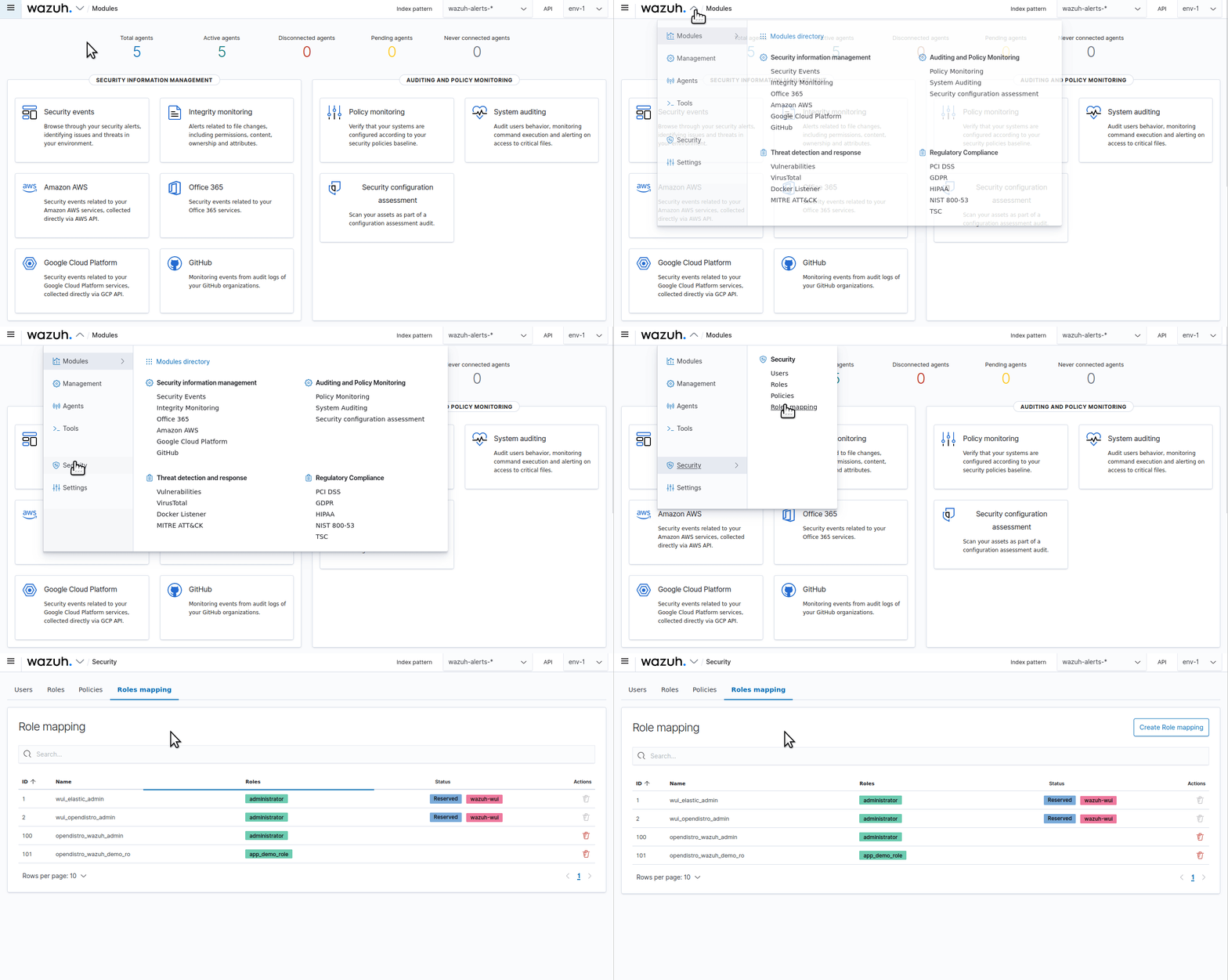
b. Click Create Role mapping and complete the empty fields with the following parameters:
- Role mapping name: Assign a name to the role mapping.
- Roles: Select
administrator. - Custom rules: Click Add new rule to expand this field.
- User field:
backend_roles. - Search operation:
FIND. - Value: Assign the name of your backend role in your LDAP server. In our case, this is a group named
Administratorwhich contains users with administrator roles
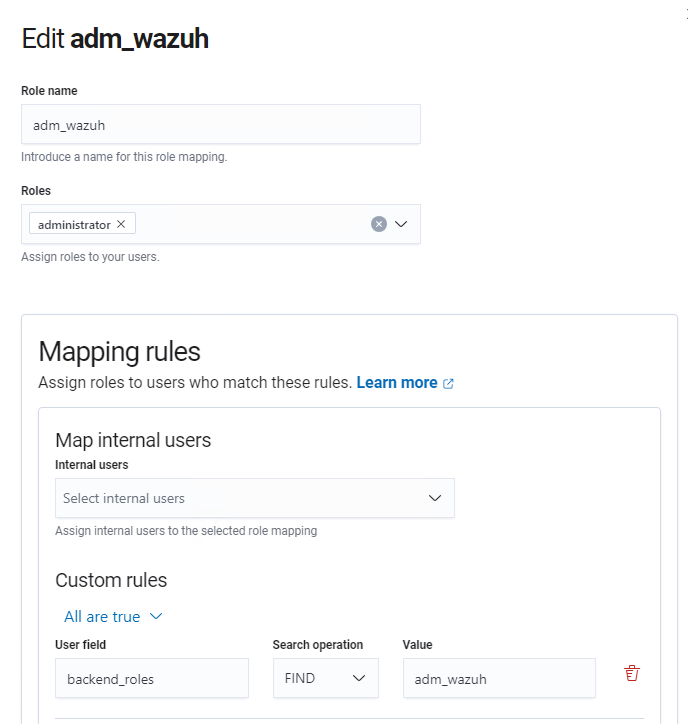
c. Scroll down and Click Save role mapping to save and map the backend role with Wazuh as administrator.
4. Restart the Wazuh dashboard service using this command:
systemctl restart wazuh-dashboardYou can also create read-only role mapping, please consult official guide for more info.
The following warning is displays if run_as is setup to false. It must be true to use mapping in web-gui.
For the role mapping to take effect, enable run_as in the API host configuration, restart the dashboard service and clear your browser cache and cookies.
vi /usr/share/wazuh-dashboard/data/wazuh/config/wazuh.ymlChange run_as from false to true:
run_as: true ##falseRestart Wazuh Services:
systemctl restart wazuh-manager
systemctl restart wazuh-dashboard
Leave a Reply