I’m using Wazuh as Security Information and Event Management (SIEM) solution, it provides monitoring, detection, and alerting of security events and incidents.
Wazuh can do much more and its up to you how you learn and integrate it within your infrastructure and IT environment. It can also do XDR and actively block connections, can also provide threat inteligence and end pointpoint protection.
In this guide series I will be discussing the following:
- Installation of Wazuh Server
- Installation of Agents
- Wazuh Server LDAP/ActiveDirectory Authentication
- Useful Dashboard items
- Enable Syslog
- Custom Decoder and Rules
- Custom Rulesets
- Explaining Logs Archives
- Real life Example: Configure Dell Network switches with Wazuh
- Real life example: Configure Fortigate with Wazuh
- Checking events and useful Dashboards
- Email Alerts configuration
Hardware Requirements:
| Agents | CPU | RAM | Storage (90 days) |
| 1–25 | 4 vCPU | 8 GiB | 50 GB |
| 25–50 | 8 vCPU | 8 GiB | 100 GB |
We will be using RockyLinux 9.4. check official guide for more info.
Installing wazuh
The recommended systems are: Red Hat Enterprise Linux 7, 8, 9; CentOS 7, 8; Amazon Linux 2; Ubuntu 16.04, 18.04, 20.04, 22.04. The current system does not match this list. Use -i|–ignore-check to skip this check
curl -sO https://packages.wazuh.com/4.13/wazuh-install.sh && sudo bash ./wazuh-install.sh -a

chmod +x wazuh-install.sh
./wazuh-install.sh -a -i
--- Summary ---
INFO: You can access the web interface https://<wazuh-dashboard-ip>:443
User: admin
Password: 9ZEiTOo1ZNMPf.q.oJ5RVvPqmv5nxxxRq
06/08/2024 14:29:00 INFO: --- Dependencies ---INFO: Installation finished.Version 4.9 also released
curl -sO https://packages.wazuh.com/4.9/wazuh-install.sh && sudo bash ./wazuh-install.sh -aFirewall Ports
Please ensure that traffic is allowed on these ports: 1515, 1514, 443, 514.
sudo firewall-cmd --permanent --add-port=1515/tcp
sudo firewall-cmd --permanent --add-port=1514/tcp # secure syslog
sudo firewall-cmd --permanent --add-port=514/tcp  # for syslog
sudo firewall-cmd --permanent --add-service=https # wazuh web
sudo firewall-cmd --reload
Congrats ! You now have installed and configured Wazuh.
Note You can find the passwords for all the Wazuh indexer and Wazuh API users in the wazuh-passwords.txt file inside wazuh-install-files.tar. To print them, run the following command:
sudo tar -O -xvf wazuh-install-files.tar wazuh-install-files/wazuh-passwords.txt
Service Management
systemctl restart wazuh-manager
systemctl restart wazuh-dashboard
HealthCheck
https://wazuh/app/wz-home#/health-check
Installing Wazuh agents on Windows endpoints
Download the installer from here
Using CMD:
wazuh-agent-4.8.1-1.msi /q WAZUH_MANAGER="10.x.x.x"Using Powershell:
.\wazuh-agent-4.8.1-1.msi /q WAZUH_MANAGER="10.x.x.x"Using GUI:
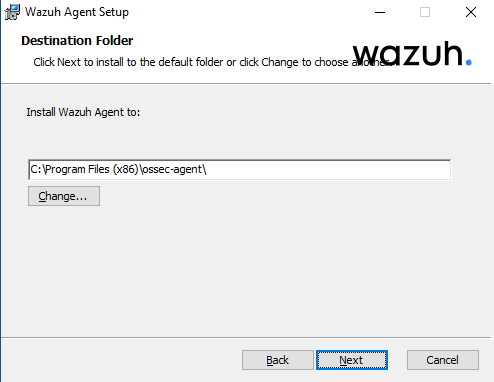
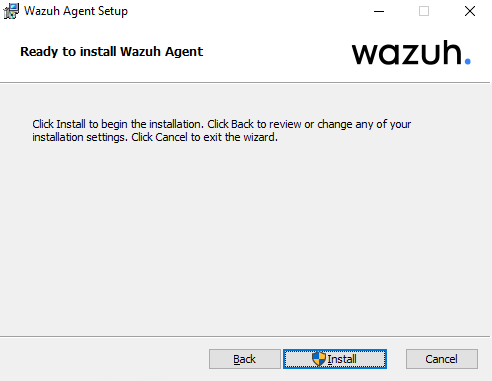
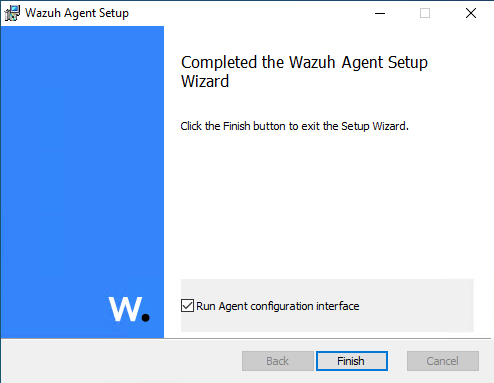
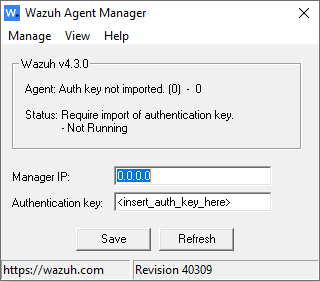
Restart the wazuh service.
CMD:
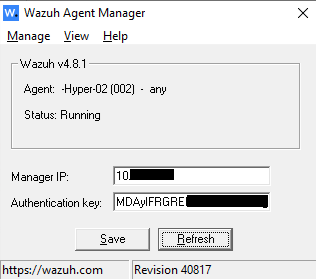
NET START WazuhOnce the agent is running it should look similar to following:
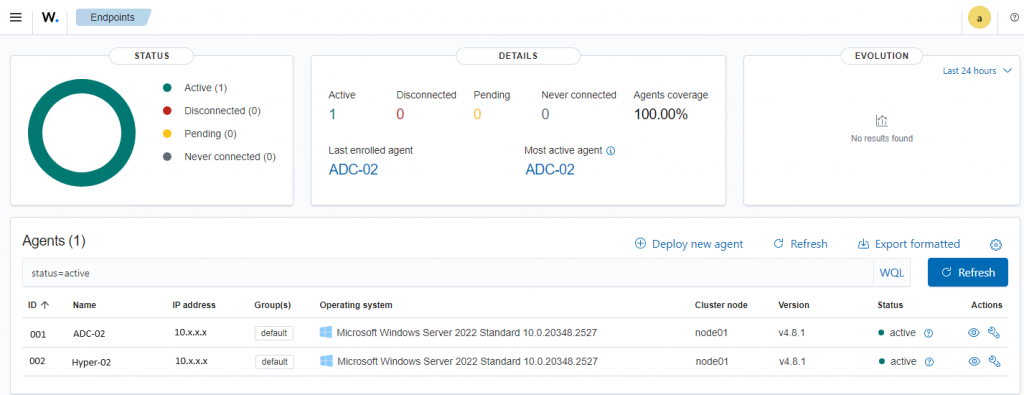
The agent will also show up in the Dashboard.
Deploying Wazuh agents on Linux endpoints
Import the GPG key, add repo then install agent as below:
rpm --import https://packages.wazuh.com/key/GPG-KEY-WAZUH

cat > /etc/yum.repos.d/wazuh.repo << EOF
[wazuh]
gpgcheck=1
gpgkey=https://packages.wazuh.com/key/GPG-KEY-WAZUH
enabled=1
name=EL-\$releasever - Wazuh
baseurl=https://packages.wazuh.com/4.x/yum/
protect=1
EOF

WAZUH_MANAGER="10.x.x.x" yum install wazuh-agent

systemctl daemon-reload
systemctl enable wazuh-agent
systemctl start wazuh-agent

sed -i "s/^enabled=1/enabled=0/" /etc/yum.repos.d/wazuh.repo
https://documentation.wazuh.com/current/user-manual/agent/deployment-variables/deployment-variables-linux.html –> for more installation options
more info to be added …
Leave a Reply